
Blogs
Explore insightful articles, practical tips and fresh perspectives on topics that matter - curated to inform, inspire, and ignite conversation.

How to Get More Customers from Google: A Complete Guide for Local Businesses
In today’s digital world, most customers search on Google before choosing a business. If your business does not appear on Google, you are losing potential customers every single day.
The good news is you don’t need a huge budget to get customers from Google. With the right strategy, even small and local businesses can attract high-quality leads consistently.
In this guide, you’ll learn practical and proven methods to get more customers from Google, especially for local businesses.
1. Create and Optimize Your Google Business Profile
Google Business Profile (formerly Google My Business) is one of the most powerful tools for local business growth.
When people search for:
- “Salon near me”
- “Web developer in Tirunelveli”
- “Restaurant near me”
Google shows local map results first. If your business is listed and optimized, customers can call you directly, visit your location, or check your services instantly.
Why Google Business Profile Is Important
- Appears in Google Maps and local search results
- Gets direct phone calls and enquiries
- Shows reviews, photos and business location
- Builds instant trust with customers
- Works even without a website
How to Optimize It Properly
- Add correct business name, category and address
- Upload real photos of your office, team and work
- Write a keyword-rich business description
- Add all services with proper details
- Get genuine customer reviews regularly
- Keep business hours updated
For local businesses, Google Business Profile is the fastest way to get customers from Google.
Need help setting up or optimizing your Google Business Profile? We do this professionally for local businesses - contact us here.
2. Build a High-Performance Website
While Google Business Profile helps with local visibility, a professional website builds credibility and long-term growth.
Many customers check your website before deciding to contact you.
Why a Website Matters
- Shows professionalism and brand value
- Explains services clearly
- Builds trust and authority
- Helps Google rank your business
- Converts visitors into customers
Key Features of a Good Website
- Fast loading speed
- Mobile-friendly design
- Clean and modern user interface
- Clear call-to-action (Call, WhatsApp, Contact Form)
- Secure HTTPS connection
- SEO-friendly structure
A slow or poorly designed website can push customers away, even if your business ranks on Google.
If your website is slow, outdated, or not converting visitors, talk to our team and get a high-performance website built for your business.
3. Focus on Local SEO (Most Businesses Ignore This)
Local SEO helps your business appear when people search within your city or nearby area.
Example searches:
- “Digital marketing agency in Tirunelveli”
- “Best software company near me”
Important Local SEO Factors
- City-based keywords in website content
- Location-specific pages (example: Web Developer in Tirunelveli)
- Google Business Profile optimization
- Local backlinks from trusted websites
- NAP consistency (Name, Address, Phone Number)
Local SEO brings high-intent customers - people who are ready to contact or buy.
Want your business to appear in top local searches and get real enquiries? Contact us for a local SEO strategy tailored to your city.
4. Use Large, Helpful Content (Content Is King)
Google prefers websites that provide useful and detailed information.
Instead of short pages, focus on creating:
- Long service pages
- Helpful blog posts
- FAQs based on customer problems
Benefits of Large Content
- Ranks for multiple keywords
- Builds authority and trust
- Keeps users on your site longer
- Improves conversion rate
Content Ideas
- How your service helps businesses grow
- Common customer questions and answers
- Step-by-step guides
- Local case studies and success stories
Helpful content means better rankings and more customers.
We help local businesses grow using Google Business Profile, high-performance websites and local SEO. Get in touch with us to grow your business online.
5. Improve Website Performance & Technical SEO
Website performance is no longer optional. Google prefers websites that are fast, secure, stable and easy to use.
Performance Optimization Tips
- Optimize images
- Use clean and lightweight code
- Remove unnecessary scripts
- Use reliable hosting
- Enable caching
A fast website improves Google rankings, user experience and conversion rate.
6. Combine Everything for the Best Results
- Google Business Profile for local visibility
- Website for trust and conversions
- Local SEO for targeted traffic
- Large content for authority
- Performance optimization for better rankings
This combination creates a consistent flow of customers from Google.
Final Thoughts
Getting customers from Google is not magic - it’s strategy.
Businesses that invest in Google Business Profile, high-quality websites, local SEO and performance optimization will always stay ahead of competitors.
If you want your business to grow online and get real customers from Google, now is the right time to start.
If you want your business to grow online and get real customers from Google, contact us today and let’s build a strategy that works for your business.
Learn more about our services on our homepage.
“Success on Google comes from visibility, trust and consistency.”

How Real-World Projects Helped Me Become a Web Developer at Webinnova Ltd
During my final year, I attended interviews at several companies but was unfortunately rejected in the aptitude rounds. Instead of giving up, I decided to start freelancing and build real-world projects to sharpen my skills and gain experience. 💪
💻 My Freelancing Journey
I began by reaching out to local businesses and startups that didn’t have an online presence. I offered to create simple, functional websites for them - sometimes even free - just to learn real-world workflows. Each project helped me understand client requirements, deployment and teamwork better than any classroom project ever could.
🚀 How I Got Noticed
I consistently shared my freelance projects and coding progress on LinkedIn. That consistency paid off when Webinnova Ltd (UK) noticed my work and reached out to me! Today, I’m thrilled to share that I’ve officially joined Webinnova Ltd as a Web Developer! 🎉
🧭 Steps for Beginners to Work on Real-World Projects
- 1. Identify a Need: Look for local shops, schools, or small companies without a website or management system.
- 2. Build for Practice: Create a website or application for them - even if it’s just a demo at first.
- 3. Show It Professionally: Present your finished project to them and ask, “Would you like me to make this live for your business?”
- 4. Deploy as Your First Client: If they agree, deploy it online. Congratulations - that’s your first real-world project!
- 5. Keep Improving: Update, maintain and add new features to strengthen your portfolio.
🌌 Believe in the Universe
I’ve learned that the universe always listens - what you truly believe, ask for and work hard toward will happen one day. ✨ We may not know what’s coming next, but that’s the beauty of it. Just give your best today, stay consistent and the results will come automatically when the time is right. 🌠
💬 Message to Aspiring Developers
To anyone feeling disheartened by rejections - don’t lose hope. ❤ Keep building, keep learning and keep sharing your work. Your consistency and passion will get noticed sooner or later. 🌱
✨ Conclusion
Real-world projects are the fastest way to grow as a developer. They teach you communication, problem-solving and deployment - the skills that truly matter in the industry. Believe in yourself, trust the universe and keep moving forward - your moment will come. 🙌
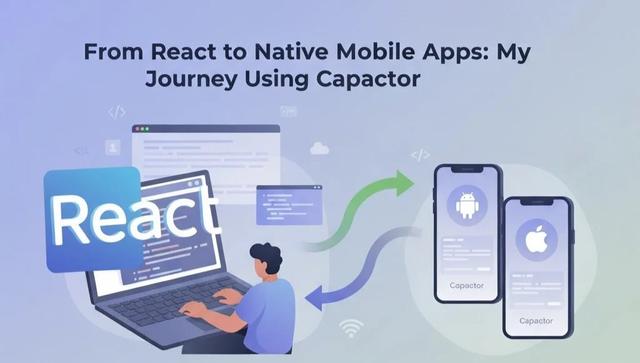
From React to Native Mobile Apps: My Journey Using Capacitor
During my job, my senior staff approached me and said: "We have this React web project, but we also need it as a mobile application." At first, I was a bit unsure how to approach it efficiently. So I decided to research ways to create native applications from a single codebase. 📱💻
Normally, writing separate code for Web android and iOS can take a lot of time and effort. Today, I discovered a fantastic platform called Capacitor. Using Capacitor, you can take your React code and build it for Android, iOS and Web - all from a single codebase. 🚀
💡 What is Capacitor?
Capacitor is a modern cross-platform framework created by the team behind Ionic. It allows web developers to use **one codebase** to deploy applications on multiple platforms. Essentially, your React app runs inside a native container, giving you access to native device APIs while still writing in React.
🌟 Why Use Capacitor?
- Single Codebase: No need to write separate code for Android, iOS and Web.
- Access to Native Features: Use camera, geolocation, notifications, storage, sensors and more via plugins.
- Rapid Development: Deploy web updates instantly without rebuilding native code.
- Cross-Platform Compatibility: Works seamlessly with React, Angular, Vue, or vanilla JS projects.
- Plugin System: Integrate third-party native plugins or write your own custom plugins.
- Open Source: Free, flexible and maintained by a large developer community.
📌 Where We Use Capacitor
Capacitor is ideal in many scenarios:
- Converting a React web app into a mobile app for iOS and Android.
- Building apps that need device features like GPS, camera, or push notifications.
- Quickly prototyping mobile apps without learning Java/Kotlin or Swift.
- Freelance projects where clients want multi-platform apps but limited budget or time.
- Internal company apps for employees, dashboards, or productivity tools.
🛠️ Setting Up Capacitor in a React Project
Here’s a step-by-step guide to get your React app running as a native mobile application:
1️⃣ Install Capacitor
npm install @capacitor/core @capacitor/cli
2️⃣ Initialize Capacitor
npx cap init
3️⃣ Build Your React App
npm run build
4️⃣ Add Android Support
npm install @capacitor/android
npx cap add android
npm run build
npx cap copy
npx cap open android
✅ Note: npx cap copy copies your React build files into android/app/src/main/assets/public/
5️⃣ Sync Changes (Optional)
npx cap sync
✅ This will copy your new web assets and also update native dependencies if plugins or configurations change.
🍏 Setting Up iOS
Before adding iOS platform, make sure you have the following:
- macOS: Xcode only runs on macOS.
- Node.js & npm/yarn: Already installed for your React project.
- Capacitor CLI: Installed as before.
- CocoaPods:
sudo gem install cocoapods - Xcode: IDE for building iOS apps.
2️⃣ Installing Xcode
- Open the Mac App Store → Search for Xcode → Install
- Open Xcode once to accept the license agreement
- Optional: Install Command Line Tools
xcode-select --install
3️⃣ Verify Installation
xcode-select -p
xcodebuild -version
4️⃣ Add iOS Platform
npx cap add ios
npm run build
npx cap copy ios
npx cap open ios
✅ Now you can run your app on a simulator or a real iOS device.
🚀 Benefits Recap
- Develop once, deploy everywhere - Web android, iOS.
- Access device APIs easily via plugins.
- Maintain a single codebase for faster development.
- Perfect for freelancers, startups, or internal company apps.
- Significantly reduces time and effort compared to writing separate native apps.
💬 Final Thoughts
Capacitor is a game-changer for developers who know React and want to create native apps efficiently. It saves time, simplifies deployment and allows you to use a single codebase for multiple platforms. If your clients ever ask for both web and mobile versions, Capacitor is the perfect solution. ✨
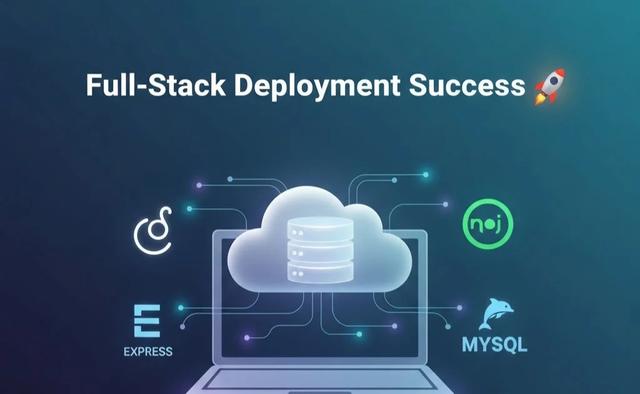
Deploy Express + React on Hostinger VPS: Complete Step-by-Step Guide
This guide explains how to deploy a Node.js (Express) backend with MySQL and PM2 on a VPS, along with setting up a React frontend using Nginx as a reverse proxy.
Connect to Your VPS
ssh root@203.0.113.10Connect securely to your VPS via SSH using your server's IP address.
Install Node.js, npm and PM2
apt update && apt upgrade -y
apt install nodejs npm -y
npm install pm2 -g
node -v
npm -v
pm2 -v
Update system packages, install Node.js and npm, then install PM2 globally to manage Node processes.
Useful Shortcuts for Server File Editing
Before you begin editing configuration files on your VPS, it’s helpful to know some basic keyboard shortcuts for nano (the default text editor in most Linux servers).
These commands make it easy to save, cancel, or navigate when editing files like .env or Nginx configs.
# Save changes in Nano
Ctrl + O    → Write (save) changes to file
Enter       → Confirm file name
Ctrl + X    → Exit the editor

# Cancel editing without saving
Ctrl + X    → Exit
N           → Discard changes

# Other helpful shortcuts
Ctrl + K    → Cut the current line
Ctrl + U    → Paste (after cutting)
Ctrl + W    → Search for text in file
Ctrl + C    → Show current cursor position
These shortcuts are essential when editing configuration files such as
/etc/nginx/sites-available/example.com or environment files like .env directly on your server terminal.
Clone Your Project
cd /root
git clone https://github.com/example/demo-express-app.git
cd demo-express-app
Clone your backend project from GitHub or manually upload your code into the VPS.
Install Project Dependencies
npm installInstall all required npm packages defined in package.json.
Setup Environment Variables
Create a .env file in your project root to store app and database configuration.
APP_NAME=DemoApp
APP_PORT=5000
APP_URL=http://localhost

DB_ENGINE=mysql
DB_NAME=demo_db
DB_HOST=localhost
DB_USER=demo_user
DB_PASS=supersecret
DB_PORT=3306

JWT_SECRET_KEY=change_this_secret
JWT_ALGORITHM=HS256

BASE_URL=http://localhost:5000
These variables define your app name, ports and MySQL credentials.
Install and Configure MySQL
apt install mysql-server -y
systemctl start mysql
systemctl enable mysql
mysql_secure_installation
Install and secure MySQL, then start and enable it to run automatically on reboot.
Create Database and User
mysql -u root -p
CREATE DATABASE demo_db;
CREATE USER 'demo_user'@'localhost' IDENTIFIED BY 'supersecret';
GRANT ALL PRIVILEGES ON demo_db.* TO 'demo_user'@'localhost' WITH GRANT OPTION;
FLUSH PRIVILEGES;
EXIT;
Create a new database and user with full privileges for your application.
Test MySQL Connection
mysql -u demo_user -p
SHOW DATABASES;
Verify your new MySQL user can access the database successfully.
Start and Test Your App
npm run start
# expect logs:
# Connected to mysql database
# Server running on http://localhost:5000
Run the app locally to confirm it connects properly before using PM2.
Keep App Running with PM2
pm2 start dist/index.js --name demo-backend
pm2 save
pm2 startup
PM2 ensures your backend runs continuously even after terminal closure or system reboot.
PM2 Management Commands
pm2 list
pm2 logs demo-backend
pm2 restart demo-backend
pm2 stop demo-backend
pm2 delete demo-backend
Use these PM2 commands to view logs, restart, stop, or remove your app process.
Set Up Nginx Reverse Proxy
apt install nginx -y
nano /etc/nginx/sites-available/example.com
Install Nginx and create a configuration file to route traffic to your Node.js app.
server {
    listen 80;
    server_name example.com www.example.com;

    location / {
        proxy_pass http://127.0.0.1:5000;
        proxy_http_version 1.1;
        proxy_set_header Upgrade $http_upgrade;
        proxy_set_header Connection 'upgrade';
        proxy_set_header Host $host;
        proxy_cache_bypass $http_upgrade;
    }
}
ln -s /etc/nginx/sites-available/example.com /etc/nginx/sites-enabled/
nginx -t
systemctl reload nginxLink the config file, test syntax and reload Nginx to apply changes.
Add SSL (HTTPS)
apt install certbot python3-certbot-nginx -y
certbot --nginx -d example.com -d www.example.com
Install Certbot to automatically configure free SSL certificates via Let's Encrypt.
Update App (When You Push New Code)
cd /root/demo-express-app
git pull
npm install
pm2 restart demo-backend
Pull the latest code, update dependencies and restart your app using PM2.
Debug Common Issues
- Access denied for user - check
.envcredentials and MySQL grants. - ECONNREFUSED - ensure MySQL is running:
systemctl start mysql. - App not starting - check logs:
pm2 logs demo-backend.
React Frontend Deployment Guide (Vite)
Connect to VPS
ssh root@203.0.113.10Connect again to your VPS to deploy the frontend application.
Install Node.js, npm & Serve
apt update && apt upgrade -y
apt install nodejs npm -y
npm install -g serve pm2
Install Node.js, npm and serve for hosting static files.
Clone Your Frontend Project
cd /root
git clone https://github.com/example/demo-frontend.git
cd demo-frontend
Fetch your React project from GitHub or upload it manually.
Install Dependencies
npm installInstall frontend dependencies required for the React build.
Build Your App
npm run buildGenerate production-ready static files in the dist/ folder.
Run Locally (for testing)
serve -s dist -l 3000Preview your app locally on port 3000 before deploying it permanently.
Run Frontend in Background (Using PM2)
pm2 start "serve -s dist -l 3000" --name demo-frontend
pm2 save
pm2 startup
Use PM2 to keep the frontend running continuously in the background.
Verify Everything
pm2 list
pm2 logs demo-frontend
pm2 restart demo-frontend
pm2 stop demo-frontend
Check logs and restart or stop the frontend when needed.
Access Your App
http://203.0.113.10:3000Open the IP address in your browser to confirm the site is running.
Example Directory Structure
/root
├── demo-express-app/
│   ├── dist/
│   ├── package.json
│   └── ...
└── demo-frontend/
    ├── dist/
    ├── package.json
    └── ...
Restart / Redeploy Frontend
pm2 stop demo-frontend
npm run build
pm2 restart demo-frontend
Stop the old process, rebuild the latest code and restart the frontend.
“Great things are built step by step - keep learning, keep building.”

How to Protect Your React & Next.js App from Critical Security Vulnerabilities (CVE-2025-66478)
This is an official security update from the Next.js team regarding a critical vulnerability affecting React Server Components (RSC) in Next.js App Router applications. The issue is rated CVSS 10.0 and can lead to remote code execution in unpatched environments.
Official Advisory
A critical vulnerability has been identified in the React Server Components (RSC) protocol. This issue can allow remote code execution when processing attacker-controlled requests in unpatched environments. This advisory tracks the downstream impact on Next.js applications using the App Router.
Impact
The vulnerable RSC protocol allowed untrusted inputs to influence server-side execution behavior. Under specific conditions, an attacker could craft malicious requests that trigger unintended server execution paths, resulting in remote code execution.
Affected Next.js Versions
- Next.js 15.x
- Next.js 16.x
- Next.js 14.3.0-canary.77 and later canary releases
Not affected: Next.js 13.x, stable 14.x, Pages Router applications and the Edge Runtime.
Fixed Versions
- 15.0.5
- 15.1.9
- 15.2.6
- 15.3.6
- 15.4.8
- 15.5.7
- 16.0.7
Patched Canary Releases
- 15.6.0-canary.58
- 16.1.0-canary.12
Required Action
There is no workaround. All users should upgrade to the latest patched version immediately.
npm install next@15.0.5
npm install next@15.1.9
npm install next@15.2.6
npm install next@15.3.6
npm install next@15.4.8
npm install next@15.5.7
npm install next@16.0.7

# Canary releases
npm install next@15.6.0-canary.58
npm install next@16.1.0-canary.12

# If using 14.x canary
npm install next@14
Official Update Tool
npx fix-react2shell-nextMore Information
For full details, see the official Next.js advisory: https://nextjs.org/blog/CVE-2025-66478
“Always keep your frameworks updated to stay protected.”

Muthukumaran R
Full-Stack Developer & Freelancer
Jump to any section of my portfolio or explore more content.